Tidy data
Last session, we learned the tidyverse is a useful package for cleaning data. The tidyverse is also useful for formatting datasets to make them ‘tidy’. But what is tidy data?
There are 3 things make a dataset tidy: - each variable has its own column. - each observation has its own row. - each value has its own cell.
In practice, tidy data might look like this: in table format, each column represents a unique variable, each row a unique observation and each cell a unique value.
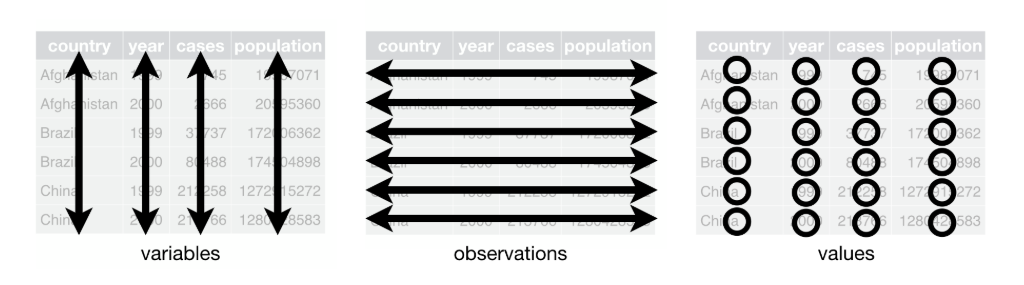 But what are variables, observations and values? From the Tidy data documentation: “A dataset is a collection of values, usually either numbers (if quantitative) or strings (if qualitative). Values are organised in two ways. Every value belongs to a variable and an observation. A variable contains all values that measure the same underlying attribute (like height, temperature, duration) across units. An observation contains all values measured on the same unit (like a person, or a day, or a race) across attributes.”
Let’s work through what this all means with an example.
Say this is your dataset: you have a list of countries, and years where the number of cases of an illness were recorded.
| Afghanistan |
587 |
497 |
| Brazil |
93 |
88 |
| China |
3391 |
2034 |
| … |
… |
… |
What are the variables and observations in this data? Is this dataset tidy?
Here, the numbers of cases were recorded for each country and year, which then comprise the three variables in this dataset (country, year, cases). Each combination of country and year consists of one observation. Therefore, this dataset is not tidy, because the variable year is spread across multiple columns.
How can we tidy this data up? Remember that for tidy data, each variable has its own column. Therefore, we would have to take the columns ‘1999’ and ‘2000’ and combine them into a new column, ‘year’ - which looks like this:
| Afghanistan |
1999 |
587 |
| Afghanistan |
2000 |
497 |
| Brazil |
1999 |
93 |
| Brazil |
2000 |
88 |
| China |
1999 |
3391 |
| China |
2000 |
2034 |
| … |
… |
… |
You will notice that each column is its own variable - country, year, cases - and each row is its own observation - one row per combination of country and year. You will also notice that the names of countries appear in multiple rows, as do the years, as they have more than one observation each (each country has observations for multiple years, and each year has observations for multiple countries).
Let’s try again! Look at the dataset below. Is it in tidy format? If not, what would the tidy version look like?
| Beth |
D |
D |
C |
| Carl |
F |
C |
C |
| Erin |
B |
C |
B |
| Joe |
A |
A |
B |
The dataset is not tidy. Here, the variable “assessment” is spread across multiple columns. The tidy version of this dataset would look like this, with one row per observation, that is, per combination of student and assessment.
| Beth |
Math test |
D |
| Beth |
English test |
D |
| Beth |
Essay |
C |
| Carl |
Math test |
F |
| Carl |
English test |
C |
| Carl |
Essay |
C |
| Erin |
Math test |
B |
| Erin |
English test |
C |
| Erin |
Essay |
B |
| Joe |
Math test |
A |
| Joe |
English test |
A |
| Joe |
Essay |
B |
Because this format has more rows than the original version, it is said to be in long format, while the previous version is said to be in wide format.
Usually, the long format of a dataset is considered to be more tidy. However, each dataset and research question is different, and what is considered a variable might also be different depending on questions. For example, while for most situations “home phone” and “work phone” could be considered two different variables, in a fraud detection context, you might want to use a long version dataset with “phone type” and “phone number”, as having one phone number for multiple people could indicate fraud. Therefore, deciding what is the best tidy format for your project will depend on your dataset and questions. Typically, if you want to describe the relationship between things (e.g., is age related to usage of social media?), these two things are better considered as different variables in your dataset. On the other hand, if you want to compare things between groups (e.g., is usage of social media different between genders?), you want the group to be a variable, with categories of your group to appear in the different rows of the dataset.
Great, but why bother to make your dataset tidy in the first place? There are two reasons you might want to transform your data into a tidy format. First it helps to keep data structure consistent. Second, it makes it easier to use lots of functions in R, especially in the tidyverse package, which you will see in future lessons.
Now that we have gone over what tidy data is and why you might want to make your data tidy - let’s try it in R!